
A shared scanner or tablet has a device account for its warehouse. Each worker then signs in with their own name and PIN. This keeps the device ready for the team while identifying who performs the work.
1. Create the device account
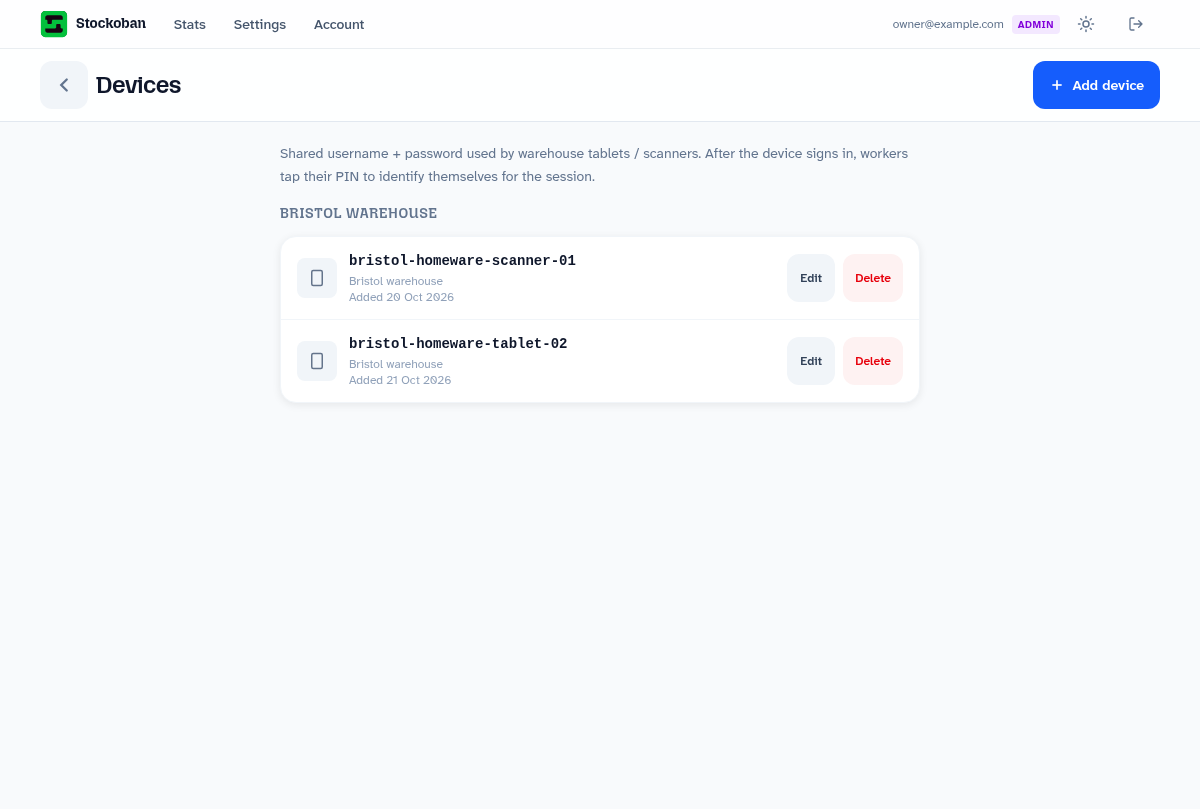
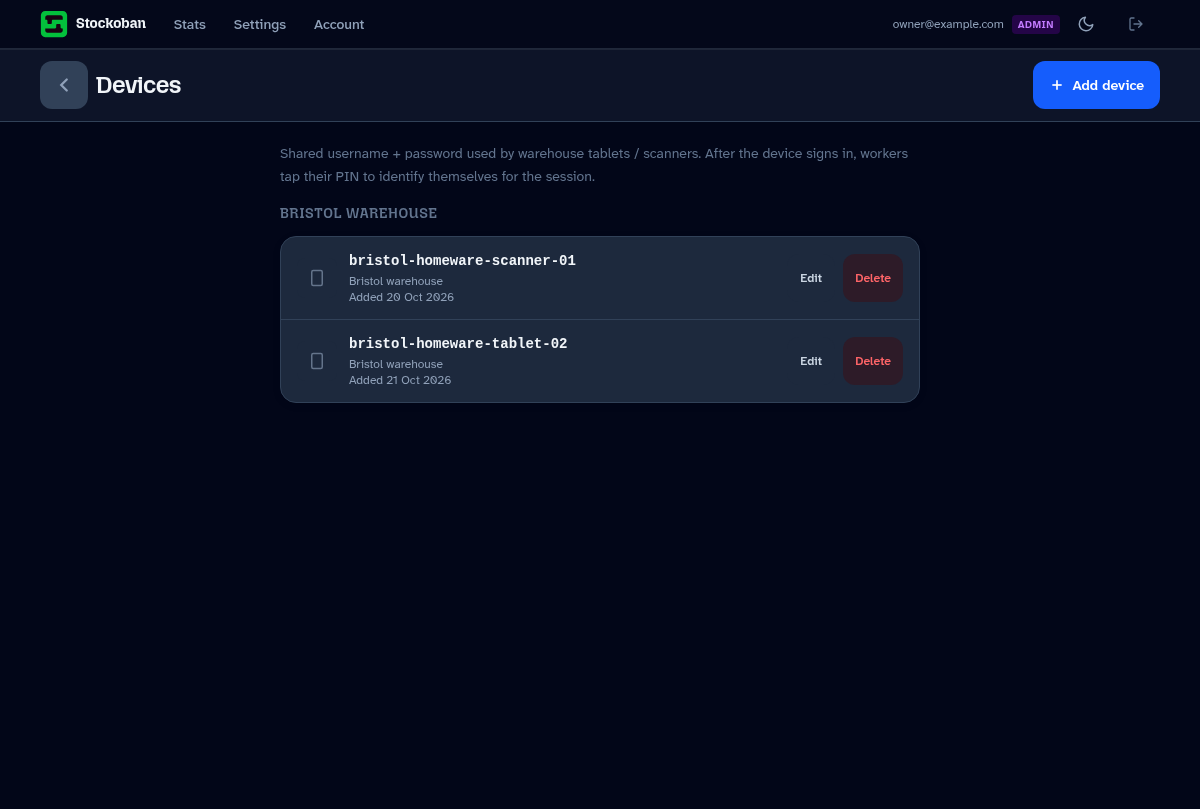
- Sign in as an administrator or manager and open Settings → Devices.
- Select the add-device button.
- Choose a recognisable username, such as
bristol-scanner-01. - Choose the correct warehouse location and set a password of at least eight characters.
- Save and keep the device credentials with the person responsible for setting up the equipment.
Choose the location carefully. It determines which workers and warehouse work the device can use.
2. Sign in on the warehouse device
- Open the device login page in the device's browser.
- Enter the device username and password you created. These are different from a manager's email sign-in details.
- Check that the worker selection screen shows the expected people for this location.
- If the browser offers to install Stockoban or add it to the home screen, you can use that option for quicker access. It is also usable in the browser.
Try the device with real warehouse gloves and connectivity before rolling it out across the team. Touchscreen Android scanners are a natural fit; check your particular device and browser during the trial.
3. Start and finish a worker's session
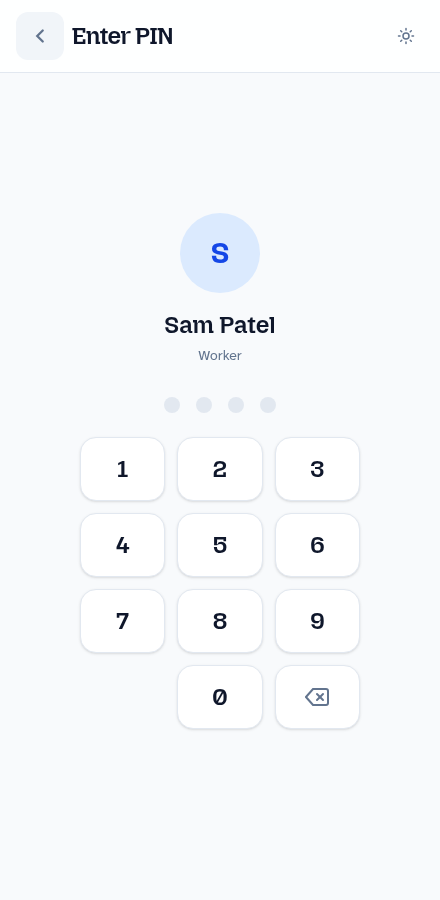
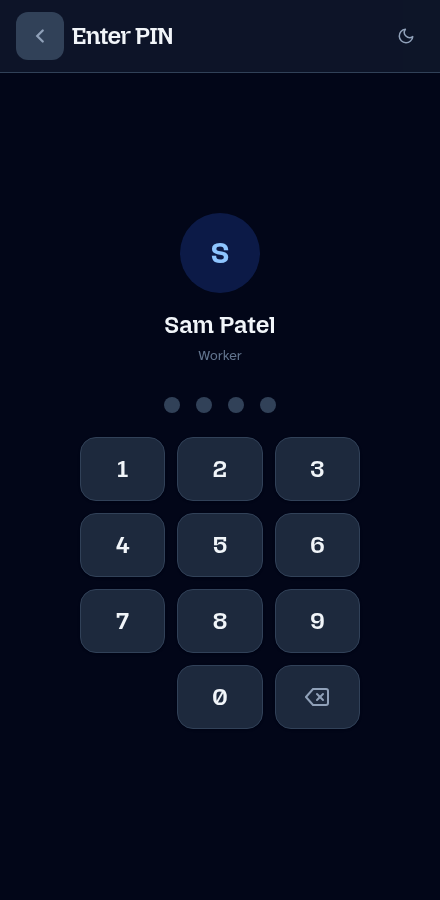
- The worker selects their name and enters their own 4–8 digit PIN.
- They open or create their replenishment list.
- When handing the device to someone else, they sign out of their worker session.
- The next colleague selects their own name and enters their PIN. They should check the name shown before starting work.
A worker signing out is part of normal device sharing. Device credentials are for setting up access to the warehouse; a worker's PIN is their personal identity.
Lost, moved or replaced equipment
- If equipment is lost, open Settings → Devices and delete the affected device account. The app states that devices using it will be signed out on their next request. An offline device may not receive that request immediately.
- If equipment moves to a different warehouse, update its location deliberately and sign in again, then check the available workers.
- For a replacement, create or configure the appropriate device account and repeat the login checks above.
Connection problems
Open a list while connected before taking it into an area with poor Wi-Fi. Stockoban caches opened lists and can queue supported item changes, such as ticks and quantities, for later sending.
You still need a connection for sign-in, fresh inventory and actions such as starting, pausing, handing over or completing a list. Reconnect and check that changes have been sent before switching devices, clearing browser data or signing out. Do not assume another device has received an offline change.
If a worker cannot sign in, first check their PIN, active status and location. If nobody can sign in, check the device credentials and connection and ask the manager to review the device account.