
Start by noting which warehouse, person, device and list are affected. This makes a problem easier to resolve without repeating work.
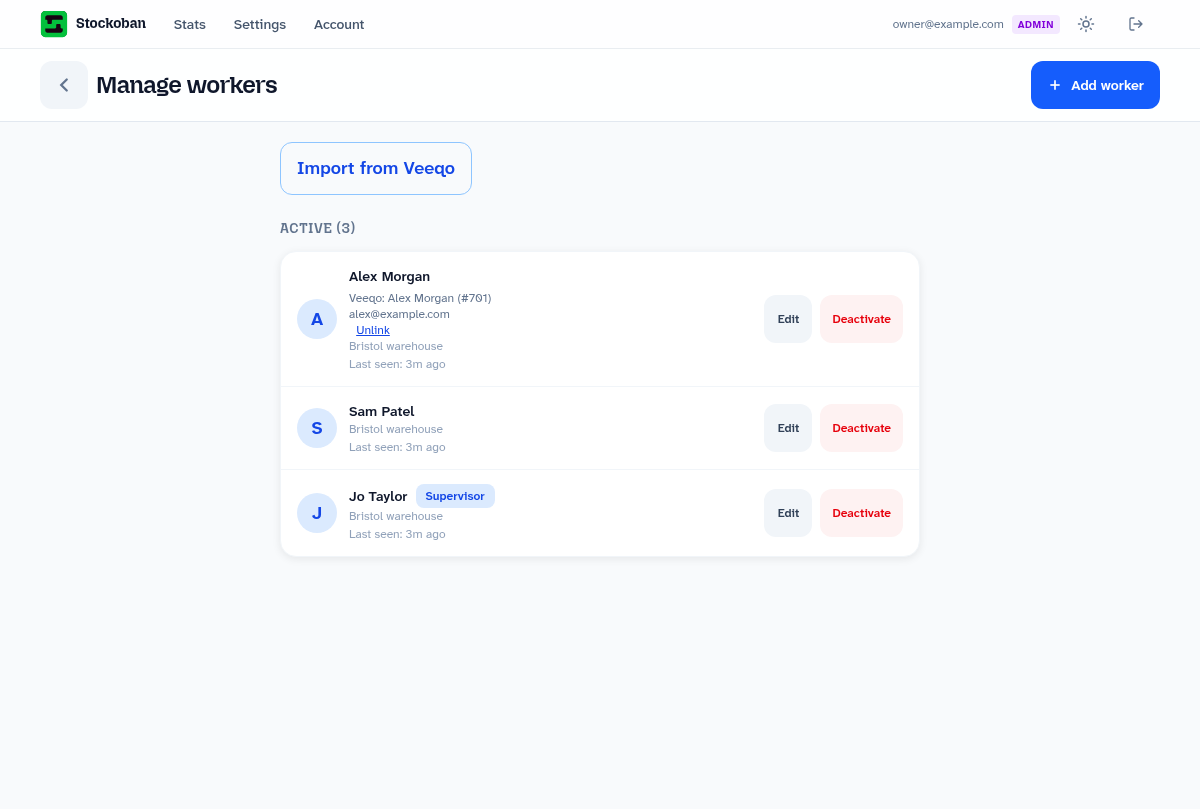
A worker's name is missing
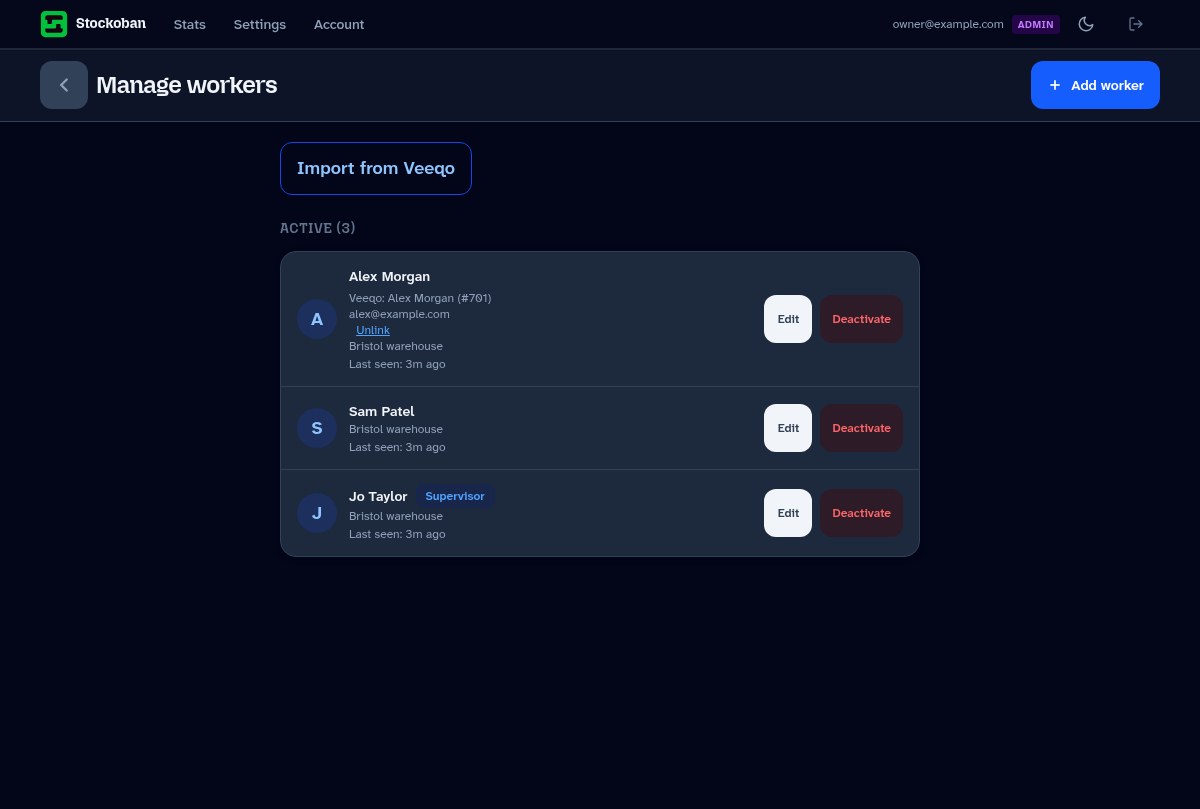
- Ask a manager to open Settings → Workers.
- Check that the worker is active and belongs to the expected location.
- Check that the device account belongs to that same location.
- Return to worker selection while connected and try again.
A worker's PIN does not work
Check that the correct name is selected. A manager can edit the worker and set a new PIN; share it privately with the colleague. Device passwords and manager passwords are separate from worker PINs.
Products or stock information look old
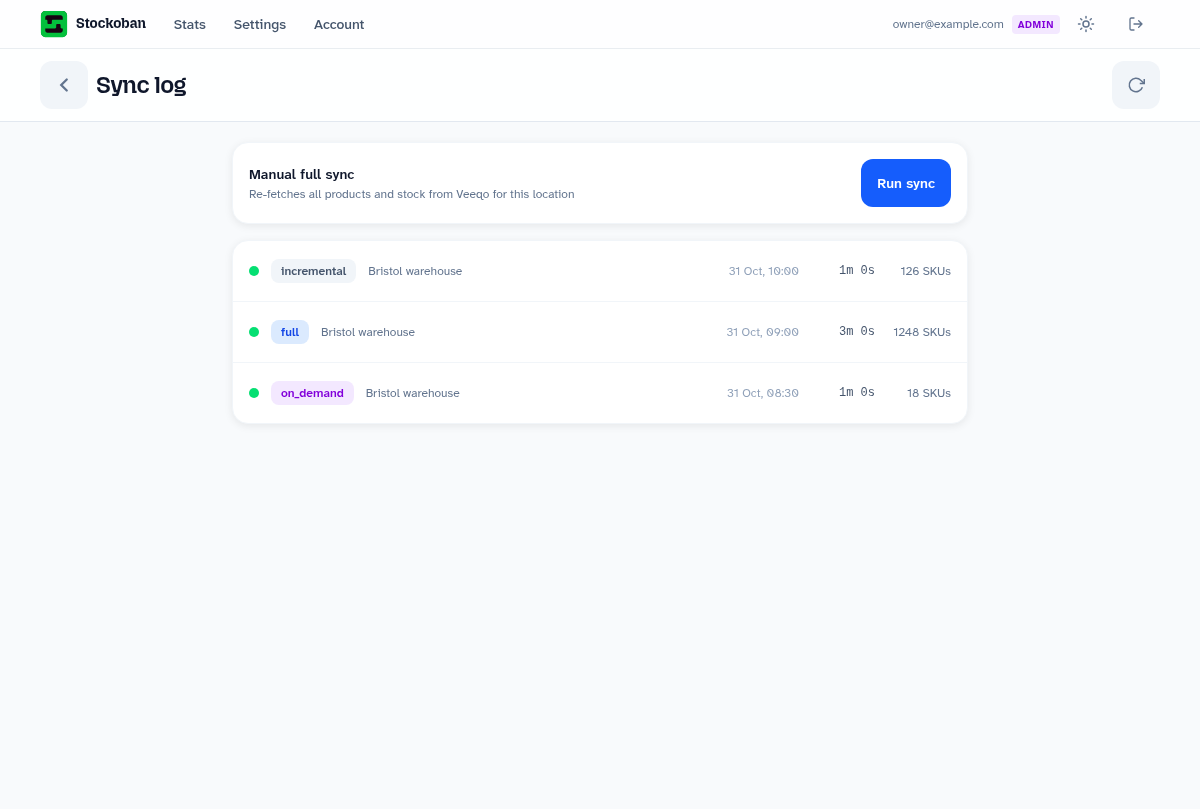
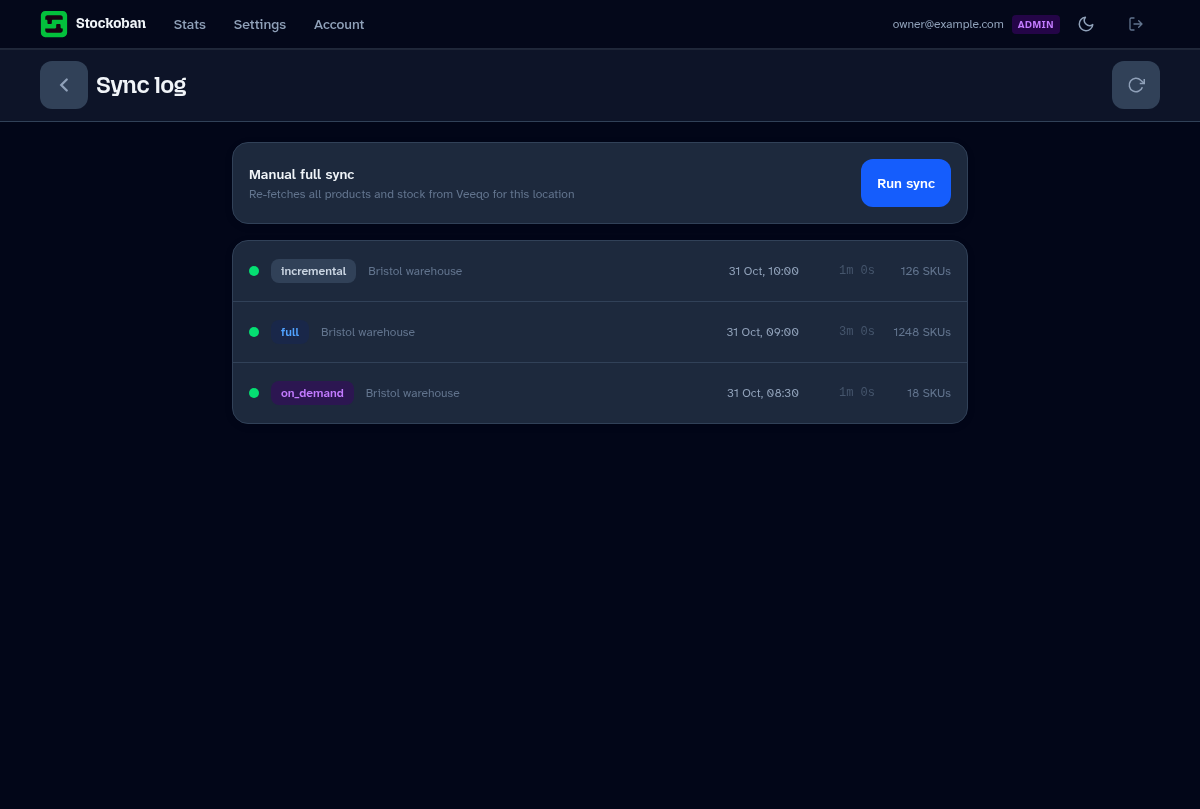
- Check the connection status and last sync under Account.
- Open Settings → Sync and review progress or errors before requesting another import.
- Check that you are looking at the right warehouse and product variation.
- Check the corresponding record in Veeqo. Inventory is imported periodically, not a live physical shelf count.
Stockoban also requests a stock refresh when a list is opened. Allow time for background work. If a sync is still running, repeatedly starting it again will not make it finish faster.
The device loses Wi-Fi
Keep the current list open. Supported item changes can be saved locally for sending later, but a new sign-in, fresh inventory and list lifecycle actions still need a connection.
Reconnect and check the result before switching devices or signing out. Do not clear browser storage or uninstall the app while there may be unsent work. If you are unsure whether completion reached the server, check the list's status before repeating the action.
A list cannot be completed
Check that the list is in progress, review the pending items and deal with items that could not be picked. Then check connectivity. Complete the list only after putting the stock into the picking area.
For unfinished work at the end of a shift, ask a supervisor to use reassignment or handover, with a note explaining the actual stock position.
Reports do not match expectations
Check the warehouse and date range. Look for unfinished lists and devices that have not reconnected. Review the underlying list records and notes before drawing a conclusion from the chart.
Billing or administrator access needs attention
An administrator can use Account → Manage billing to review the subscription and payment details. If an administrator cannot sign in, check email/password details and the authenticator code; make sure the phone's date and time are automatic. Ask another authorised administrator to review the account where possible.
If you need further help
Send the person responsible for your Stockoban account the page name, warehouse, approximate time and any list or product reference, plus the exact error message. A screenshot can help; avoid including passwords, PINs, authenticator codes or payment details.