
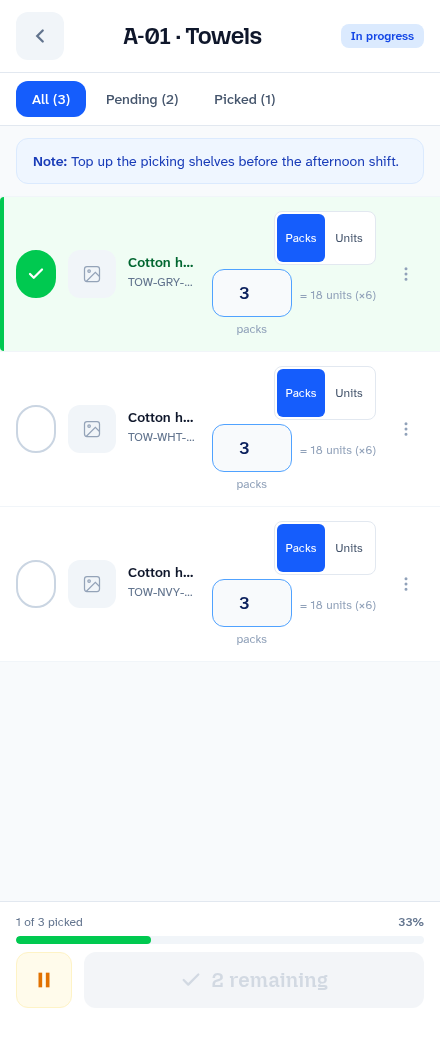
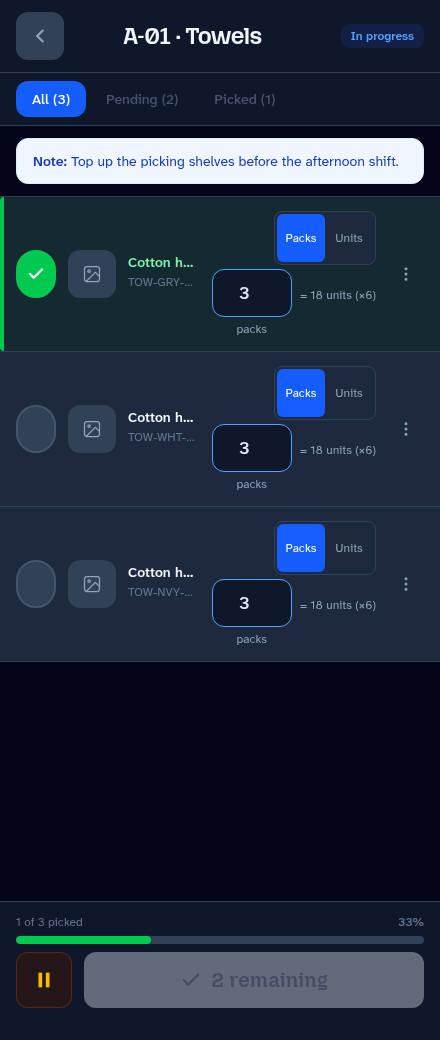
Use a list to take a defined piece of replenishment work from collection to completion. Keep it small enough for a colleague to finish and easy for the next shift to understand.
1. Prepare the work
- Sign into the warehouse device, then select your name and enter your PIN.
- Open your lists and choose the control for a new list.
- Choose Product line, Bay / bin location or Custom.
- Select the relevant product group, shelving bay or individual products. A product line groups related products or variations; a bay groups a physical area.
- Review the selection. Check product references, pack sizes and locations rather than relying on a familiar product name alone.
- Set any notes, priority or deadline offered in the assignment step. Supervisors can allocate the list to a colleague; ordinary workers create their own work.
- Create the list and check the title and items before starting.
If the bay or product group is missing, ask a manager to check the imported product data and references. Avoid creating a duplicate list just because you cannot find the existing one.
2. Collect the reserve stock
- Open the list and tap Start picking when you begin the work.
- Read the product code and reserve-stock location. The reserve stock is the stock kept away from the shelves used to pick customer orders.
- Check the requested quantity. Enter packs or individual units as appropriate; the app converts using the product's pack size.
- Tick each item as you collect it. Use Pending to focus on what is left and Picked to review what is done.
- If the quantity or pack size is wrong, correct it using the available controls, or ask a colleague with permission to update the reference.
For example, three packs containing six towels each means 18 towels. Check both the product variation and the pack size before taking stock. Stock shown in the app is imported information, so physically check what is available.
3. Record an exception
Use the item's flag and note controls when the job cannot be done as expected:
- Not found: the product is not in the expected reserve-stock location.
- Partial stock: you can find only part of the quantity needed.
- Wrong location: you found it somewhere other than the expected location.
Record a short, useful note: “Two packs found on R-03-02; expected four” is more helpful than “Stock wrong”. Use the skip control where appropriate for an item you cannot pick, and check the remaining list before completing it.
A flag informs the manager; it does not correct Veeqo. Ask the responsible person to investigate and make any stock or bin-location correction in Veeqo.
4. Pause or hand over unfinished work
- Tap Pause if you stop work on the list.
- Choose the appropriate reason, such as Scheduled break, Personal break or Incident / issue, or continue without a reason.
- Resume when you return to the work. Keep pauses accurate so the timing record is useful.
- If someone else will finish, ask a supervisor to reassign the list or include it in the shift handover. Add a note explaining what is physically picked, what remains and where the stock has been left.
A supervisor can use the list's supervisor controls to reassign work or add it to a handover. In Handover, review the shift and notes. Check the assigned colleague and the actual stock before continuing. Handover preparation uses flagged items, or unpicked items if nothing is flagged, so review the proposed work carefully.
5. Replenish the picking area and finish
- Once the relevant items are picked, take them to the picking area.
- Put the stock into the correct picking spaces. The “all picked” stage is not the end of the physical top-up.
- Review skipped items, flags and notes, and check that the list accurately describes the work.
- Tap Complete and confirm only when the replenishment is finished.
This distinction lets Stockoban show picking time separately from the time between all items being picked and list completion. The latter is shown as carrying time, so late completion or unrelated delays will affect it.
6. Check the result
Confirm that the list appears as completed. Managers can then review it in Stats and Reports. If the connection dropped, reconnect and confirm that changes reached the app before leaving the device.
If the completion control is unavailable, review pending items and the list's status. If an action fails, check connectivity and the displayed result before trying again; avoid creating a second list for the same work.