
Start with one warehouse area and a small team. You will need a Veeqo account with permission to connect an app, an email address for the Stockoban administrator, an authenticator app for sign-in codes, and a scanner, tablet or phone with a browser.
1. Create your business account
- Select Start trial and choose a plan. The sign-up page shows current prices, the trial period and available billing options.
- Enter your business and administrator details. Use an email address you can access and a unique password.
- Continue through checkout and read the billing terms before confirming. Keep a note of when your trial ends.
- Sign in through Sign in, using your administrator email and password.
- Follow the instructions to set up two-factor authentication. This adds a short code from an authenticator app when you sign in. Administrators must set it up; it protects access to the business account.
2. Connect Veeqo
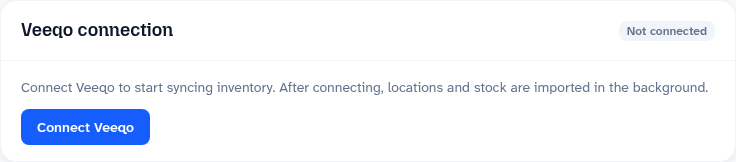
- Open Account, then select Connect Veeqo.
- Sign in to the intended Veeqo business and approve the connection. Check that you are connecting the right account if you manage more than one.
- Return to Stockoban and let the first inventory import finish. Larger catalogues can take longer; there is no need to keep starting it again.
- Open Stats and select your warehouse location. If it has not appeared, check the Veeqo connection in Account and the progress under Settings → Sync.
Stockoban reads your products, warehouses and stock information from Veeqo. Completing a replenishment list does not update Veeqo stock quantities or bin locations.
3. Check your locations and product references
- In Settings, check the imported locations and hide any that your team will not use.
- Open Settings → Products and check a few familiar products. A SKU is the code used to identify a particular product variation, such as one colour and size.
- Check the picking location, reserve-stock location, pack size and slot capacity where available. Slot capacity is how many units fit in the picking space; pack size is how many units are in a pack.
- Correct missing or unsuitable Stockoban references before asking the team to rely on them. Investigate Veeqo stock or bin-location errors in Veeqo itself.
For example, six towels per pack and space for 24 towels means that four full packs fit in an empty picking space. A partly filled space needs less. Check actual shelf space and the requested quantity when preparing the list.
4. Set up people and devices
Follow Add your team to create managers, workers and supervisors. Then follow Set up a warehouse device. These are separate steps: the device identifies the warehouse, and the person's PIN identifies who is working.
5. Run one list from start to finish
Use Create and manage replenishment lists with a small, familiar bay. Complete the physical top-up before marking the list complete. Review the resulting information using Understand the dashboard and reports.
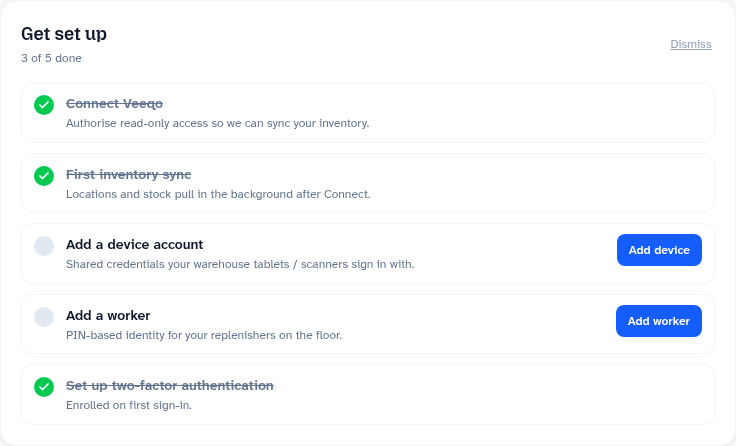
The dashboard's Get set up checklist helps you track the initial connection, inventory import, first device and first worker. If you dismiss it, you can still reach these settings from the main navigation.
If something is missing
- No locations or products: check the connection and sync progress. Make sure the expected warehouse and products exist in the Veeqo business you connected.
- Cannot connect Veeqo: ask the person who manages your Veeqo account to check their permissions and the account being authorised.
- No reports yet: the team needs to record and complete work first. New accounts do not start with historical replenishment activity.
- Cannot finish signing in: use the code from your authenticator app and check that your phone's time is set automatically. Ask another account administrator for help with access if needed.